Showing posts with label How to Tutorials. Show all posts

How to Insert or Add Youtube Video Into Powerpoint Slides?

There could be some reasons why you want to add a video to your presentation slides, for example you want to show a demo, illustration, or maybe a tutorial about something. Adding offline video to your slides is easy to do, yeah I'm sure you can do it. But how to insert or add YouTube video into powerpoint slides? Well, there's no options / menu in ms powerpoint which can enable you to do that. So, in this case we will need an add-on for Microsoft PowerPoint, an additional plugin that allows you to add YouTube video into PowerPoint presentation.

Actually there are some powerpoint add-ins that lets users to insert or add or embed YouTube video into presentation slides and I have tried some of them. And here I would like to share just two of them, only the best ones for you, all free and won't cost you anything! You don't have to install both of them, just choose one that suits your needs.

AuthorSTREAM Desktop
AuthorSTREAM Desktop is a powerpoint add-in that allows users to add YouTube video and online images into ppt slides. It supports Microsoft Powerpoint 2007 and 2010. After you have installed the add-in there will be a new tab: "authorSTREAM" tab. It powered with video search (by YouTube Data API) and image search (Windows Live API), so you can search any videos you want in YouTube and any online images via Microsoft PowerPoint interface. Just type your keyword in the search box and press enter. To embed Youtube video or images into your slide, simply select – press right click and choose insert. You can also upload your slides to authorstream and share with others.
Download AuthorSTREAM Desktop here!

insert youtube video into powerpoint slide with authorstream

iSpring Free (recommended!)
This is another useful add-in to insert/embed YouTube video into powerpoint presentations. Not only that, it also enable users to insert SWF file into ppt slides. Just like authorSTREAM, iSpring Free will add new tab on your Microsoft PowerPoint interface. On the insert group menu you can either add YouTube video or insert SWF object to your slide. Usually to insert SWF object you should manually enable developer tab and then add Shockwave Flash Object control to your slide but iSpring lets you insert SWF file only with a single click! On the Publish group menu you can publish your presentation to Flash format. iSpring Free can add YouTube video to Microsoft Office PowerPoint 2010, 2007, 2003, and XP.
Download iSpring Free here!

add youtube video and swf into powerpoint with ispring

Okay folks, that's all for the best add-in to help you to insert YouTube video into powerpoint presentations, enjoy!
Shortcut Key for Lowercase, Uppercase, and First Letter to Capital in Microsoft Word

What is the shortcut key to change all letters to lowercase, uppercase (all letters to capital) and first letter to capital in Microsoft Word and PowerPoint? There are many people who have been using Microsoft Office for years but still they don't know how to change letter case. If you are one of them then here I will show you how to do that manually / using mouse click and via shortcut key or hotkey or whatever it's called :) Oh yeah you can use this trick on all Microsoft Word 2010, 2007, 2003, XP.

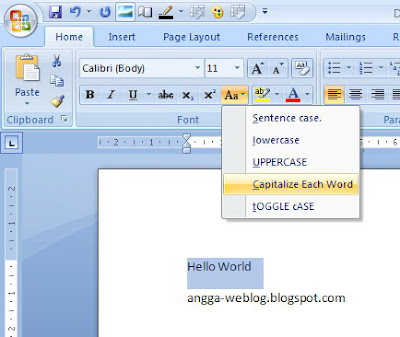
Change all the selected text to UPPERCASE, lowercase, Sentence case, Capitalize Each Word and tOGGLE CASE:

From "Home" menu, look at "Font" sub menu on the ribbon, hover your mouse to "Aa" icon and then click it to change text case.


change case in ms word and powerpoint

Change all letters to capital, lowercase and change initial letters to capital via shortcut key inMicrosoft Word and PowerPoint:
Select all text or sentence(s) or word(s) that you want to change
Now press shift (hold it) and then press F3


shortcut key for uppercase, lowercase and capitalize each word
There are three possibilities after you press the shortcut key: first, it will change all letters to capital; second, change all letters to lowercase; and third, it will change first letters of each word to capital.

How to Export Email Addresses of all your Facebook Friends

Search the Facebook Apps directory for something like “export contacts” and you’ll come across quite a few applications that sound as if they can transfer your friends contact information out of Facebook.

There’s an app called “Export Friends” that will save you friends names, city, birthday and their current location in a CSV (text) file that you then import into Excel, Gmail or any other web email program.

Then there are social plug-ins that can sync photos and status updates of your Facebook friends with matching contacts in Outlook.

The problem is that none of these apps can download what  you are looking – the phone numbers and email addresses of your Facebook friends. There are Greasemonkey scripts and other hacks that can pull this information from Facebook through “web scraping” but don’t ever take that route as Zuckerberg’s army might ban your account forever.

Export Email Addresses of your Facebook Contacts

Facebook APIs don’t expose email addresses of users and hence none of the Facebook apps can provide you with the actual contact data of your friends. There’s however a simple (and perfectly legal) workaround that can help you easily download all your friends email addresses from Facebook’s walled garden.


Courtesy : labnol.org

The trick, as you can see in the video, is actually quite simple.

Go to address.yahoo.com and click the Facebook icon. A login dialog should pop-up, just sign-in with your Facebook credentials and within seconds, you entire Facebook address book will be available inside your Yahoo Mail Account. Once the import is done, click this link to download a CSV file with the email addresses of all your Facebook contacts to your desktop.

You can then import the CSV file into Gmail Contacts, LinkedIn, your phone address book or any of the social sites where you want to connect with your existing Facebook circle.

Update: If Yahoo! is unable to import your Facebook Address book, open your Facebook page and choose “Application Settings” under Account. Next remove the “Yahoo! Contact Importer” application from your Facebook profile and try the steps mentioned in the video again.


Courtesy : labnol.org

Popular Posts